Updated October 13, 2026. This walkthrough follows Honest Fred’s actual ONN 4K Google TV setup video. Menu names and available services can vary with software updates, device model, and country.
Just unboxed a Walmart ONN 4K streaming box? The first setup screens are only part of the job. Before you settle in to watch, it is worth checking software updates, remote firmware, picture settings, privacy preferences and the apps you actually want to use. You can follow the steps below in order, or jump directly to the relevant part of the video.
Where to buy an ONN 4K streaming box
Walmart sells the current ONN 4K Google TV device in the United States. Check the exact model, compatibility and availability before purchasing: the 2026 Google TV with Gemini edition may have different menus and hardware from the device shown in the video.
Retailer link; this is not currently an affiliate link. US product compatibility and sales restrictions may apply.
Watch the full Honest Fred setup demonstration
Watch the original ONN 4K setup video on Honest Fred’s YouTube channel. This is a practical guide to the device’s own features; there are no promises that every third-party app or regional service will work on every unit.
Before you start: have these ready
- Your ONN streaming box, supplied power adapter, HDMI cable and remote.
- A television with a working HDMI input.
- A stable home Wi-Fi network and its password.
- A Google account if you want Google TV app recommendations, the Play Store and account-connected services.
- A few minutes to apply system and remote-control updates.
Step 1: Connect the box and finish first boot
Plug the box into a free HDMI port, connect power and switch your television to the matching input. Follow the on-screen pairing and Wi-Fi instructions. Choose the right language and region, then sign in with the account you intend to use on your television. If you are setting up the box for someone else, do not leave your private Google account signed in without considering their access to your purchases and recommendations.
Video: first-time setup at 0:52.
Step 2: Install updates before troubleshooting anything
Open Google TV Settings and look under System / About for the software update option. Download and install any offered update, then allow the device to restart. Depending on the installed Google TV version, the exact menu wording may differ. Updates can address security problems and device compatibility, so check them before trying performance tricks.
Video: system updates at 1:40.
Step 3: Review your Google account and privacy choices
Review the personalization, recommendations and diagnostic-data options shown during setup and later in Settings. Keep the settings that are useful to your household and turn off optional sharing you do not need. Google TV may offer a voice assistant, recommendations and personalized services; their names and availability can change with software and region.
Video: account and privacy settings at 2:17.
Step 4: Add a few essential apps—not dozens at once
Start with the Play Store and install the streaming services you actively subscribe to plus reputable free services available where you live. Honest Fred demonstrates free content options, including Tubi, in the video. Availability and catalogues differ by country, so confirm a service’s terms and location support before attempting to use it.
Video: choosing apps at 4:17; free streaming options at 11:52.
Step 5: Check the remote and picture settings
Look for remote firmware updates when offered, and check that the remote’s TV power and volume controls operate correctly. If sound is missing or the television shows a black screen, confirm you are on the correct HDMI input and use picture settings compatible with your TV.
For picture quality, review your preferred display resolution and dynamic range. An HDR-capable television does not necessarily mean forcing HDR for every item of content is the best setting. Test SDR and HDR output with material you know, and let supported devices switch modes automatically when appropriate.
Video: remote update at 6:42; display calibration and HDR at 7:19.
Step 6: Understand Downloader and optional sideloading
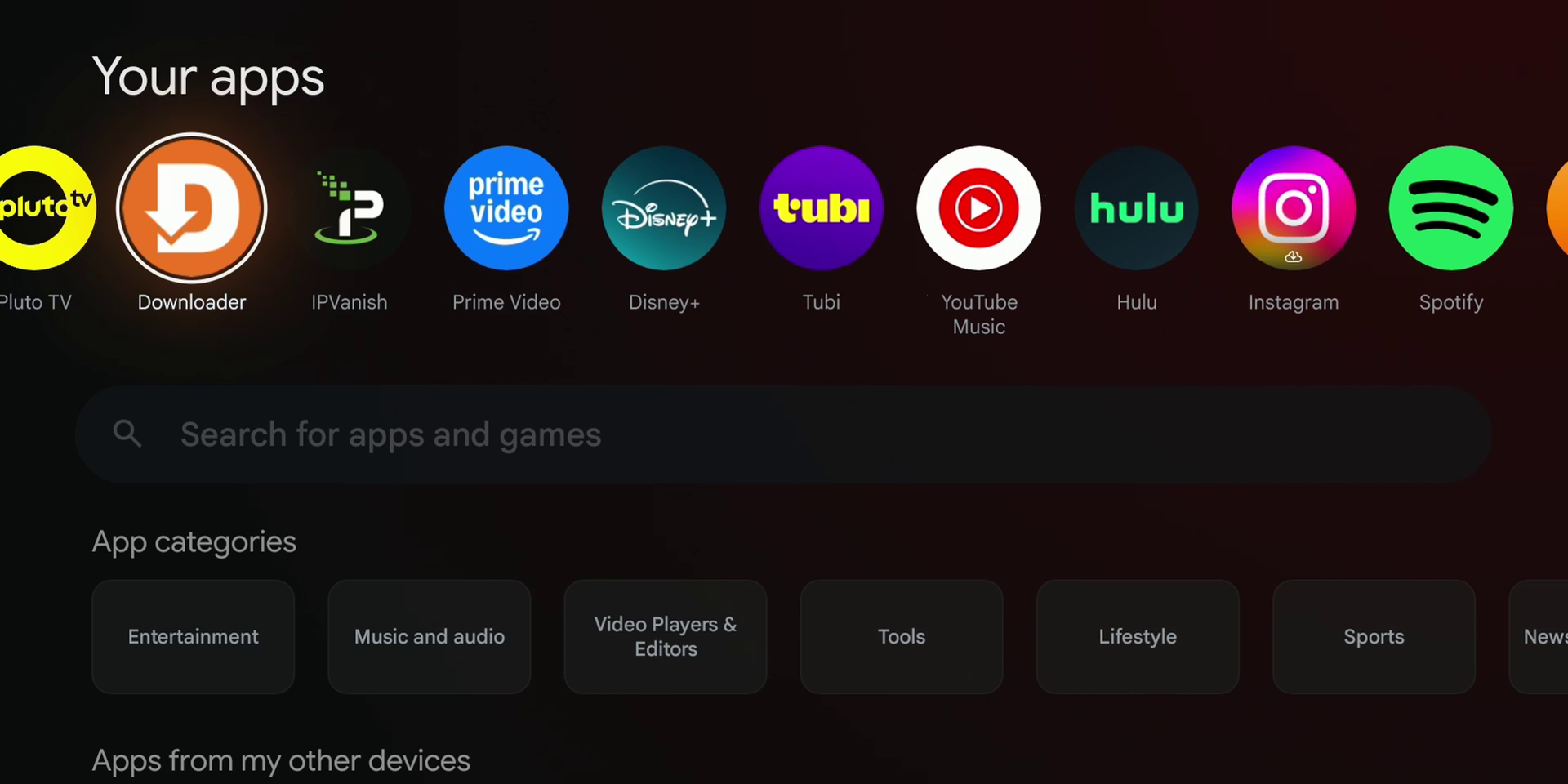
The video shows how to install the Downloader app, a utility sometimes used to obtain Android TV application packages outside the Play Store. Only install apps you trust, verify their official publishers and keep device protections enabled. An APK from an unknown website can contain malware or expose accounts. Do not bypass security warnings simply to install unverified content.
Step 7: Consider your network and Bluetooth accessories
Use a stable Wi-Fi connection, keep the device within useful router range and test another HDMI cable or port if a display issue persists. The video also covers VPN setup. A VPN can change how traffic is routed but does not guarantee access to any particular streaming service or bypass every location restriction. Follow service terms and local laws.
You can connect compatible Bluetooth audio devices through Google TV Settings. If audio sounds out of sync, try reconnecting the accessory and checking its own firmware before changing other settings. Configure the screensaver to suit your display and preferences.
Video: VPN discussion at 14:22; Bluetooth and screensaver at 16:38.
Step 8: Make only the performance changes you need
A smooth streaming experience comes primarily from current software, adequate free storage, reliable internet access and a manageable number of apps. Clear unused apps or cached files if you run low on storage. Rebooting can also help diagnose temporary slowdowns.
The video explains developer options and advanced settings. These are useful for some troubleshooting tasks, but casual users do not have to enable them to enjoy the ONN box. Avoid changing unfamiliar developer settings without a specific reason, and do not disable security protections merely in pursuit of speed.
Video: privacy and performance at 17:45; developer settings at 18:41.
Quick troubleshooting checklist
- No picture: check HDMI input, power supply, cable and resolution compatibility.
- Remote not responding: check batteries, pairing and available firmware updates.
- Buffering: test the connection, stop unnecessary downloads and verify whether the streaming provider is having problems.
- App unavailable: check app compatibility and the service’s country restrictions.
- Storage full: uninstall unused apps and remove unnecessary files before resetting the device.
Frequently asked questions
Do I need to sideload anything to use an ONN 4K box?
No. Most users can install supported streaming apps directly from Google Play. Sideloading is optional and carries additional security considerations.
Will the menus look exactly like the video?
Not necessarily. Google TV software updates, model revisions and local availability can change the menu names and available features.
Does a VPN automatically unlock services abroad?
No. A VPN is not a guaranteed solution for region restrictions, and some services detect or prohibit VPN access.
About this guide
The core steps and chapter timings above follow Honest Fred’s August 12, 2026 ONN 4K streaming box setup demonstration. For the latest instructions and features on your exact hardware revision, also check Google’s and the device manufacturer’s official support resources. The featured image comes from the Honest Fred WordPress media library and shows an ONN streaming device; the embedded video is from Honest Fred’s own YouTube channel.