
Introducing ChatGPT Translate: A Game-Changing Alternative to Google Translate
Google Translate has been the go-to translation tool for years, but OpenAI has recently launched a competitor that’s worth checking out. ChatGPT Translate offers a similar interface and functionality to Google Translate, but with some exciting additional features that set it apart. In this article, we’ll explore how to use ChatGPT Translate and what makes it a great alternative to Google Translate.
Getting Started with ChatGPT Translate
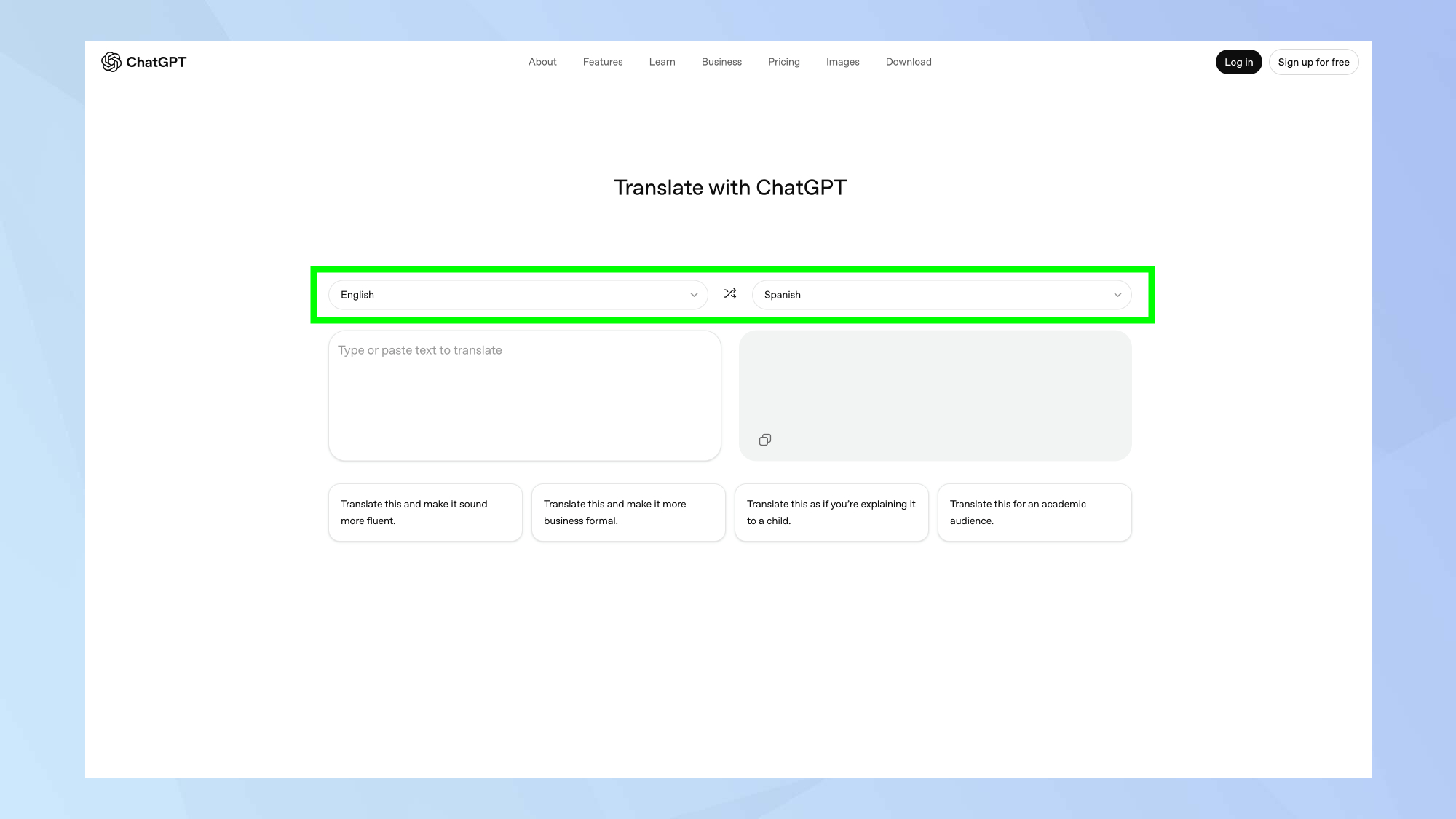
To use ChatGPT Translate, simply open your web browser and navigate to the ChatGPT Translate website. You don’t need a ChatGPT account to use the translation tool, making it accessible to anyone without login requirements. The interface is user-friendly, with two text boxes side by side, similar to Google Translate’s layout. The left box is for your original text, and the right box displays the translation.
Selecting Your Source and Target Languages
ChatGPT Translate supports 50 languages, including major options like Spanish, French, German, Mandarin, Japanese, Arabic, and Portuguese. To select your source and target languages, click the “Detect language” dropdown above the left text box. If you’re not sure what language your text is in, leave it on “Detect language” and ChatGPT will identify it automatically. Then, select your target language from the dropdown above the right text box.
Typing or Pasting Your Text
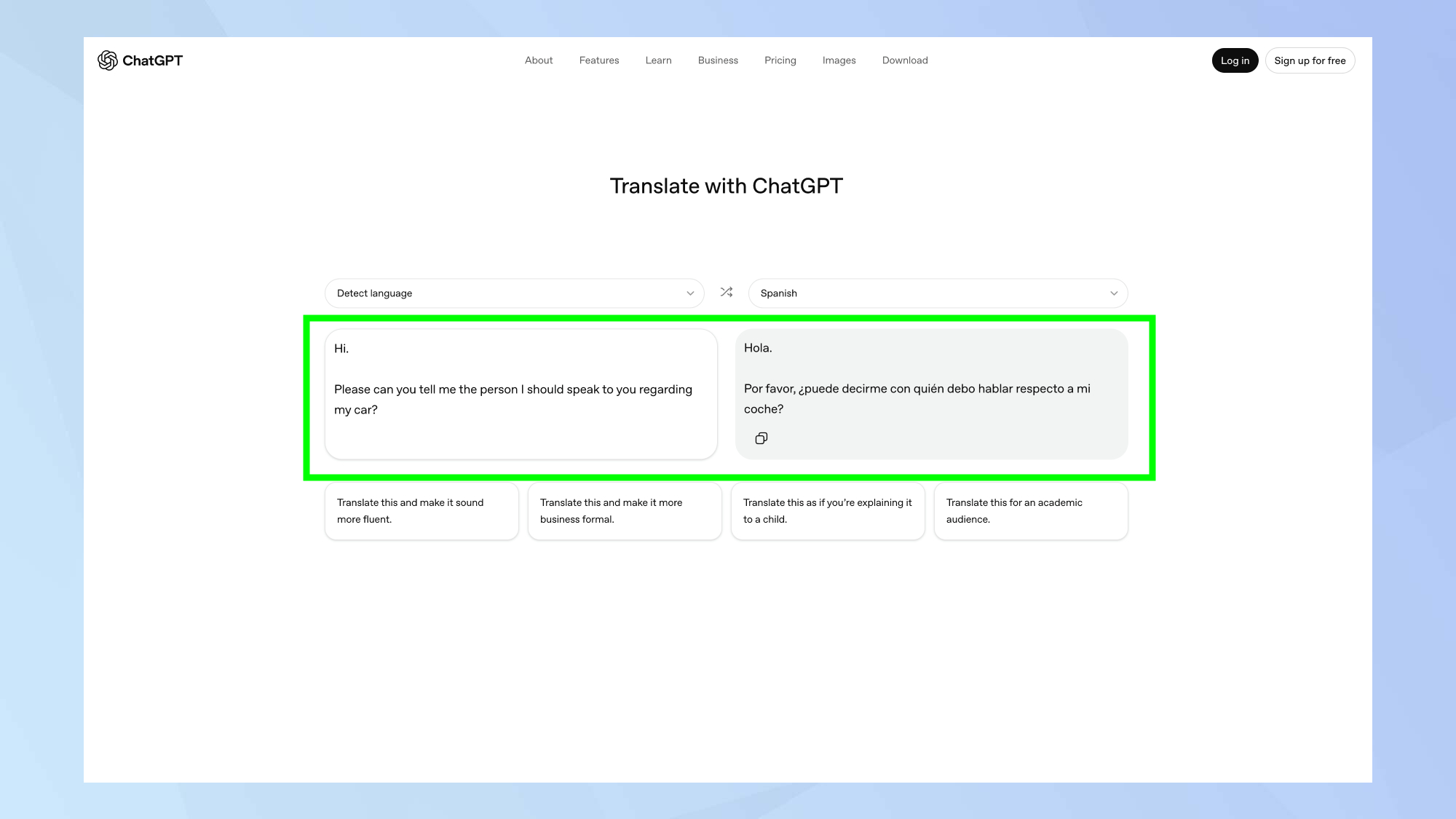
Start typing directly into the left text box, or paste text you’ve copied from another source. Translations appear live in the right box as you type, updating in real-time with each new word or sentence. You can translate anything from single sentences to multiple paragraphs, making it a versatile tool for casual messages, formal documents, website content, or any other text you need converted to another language.
Refining the Translation Tone and Style
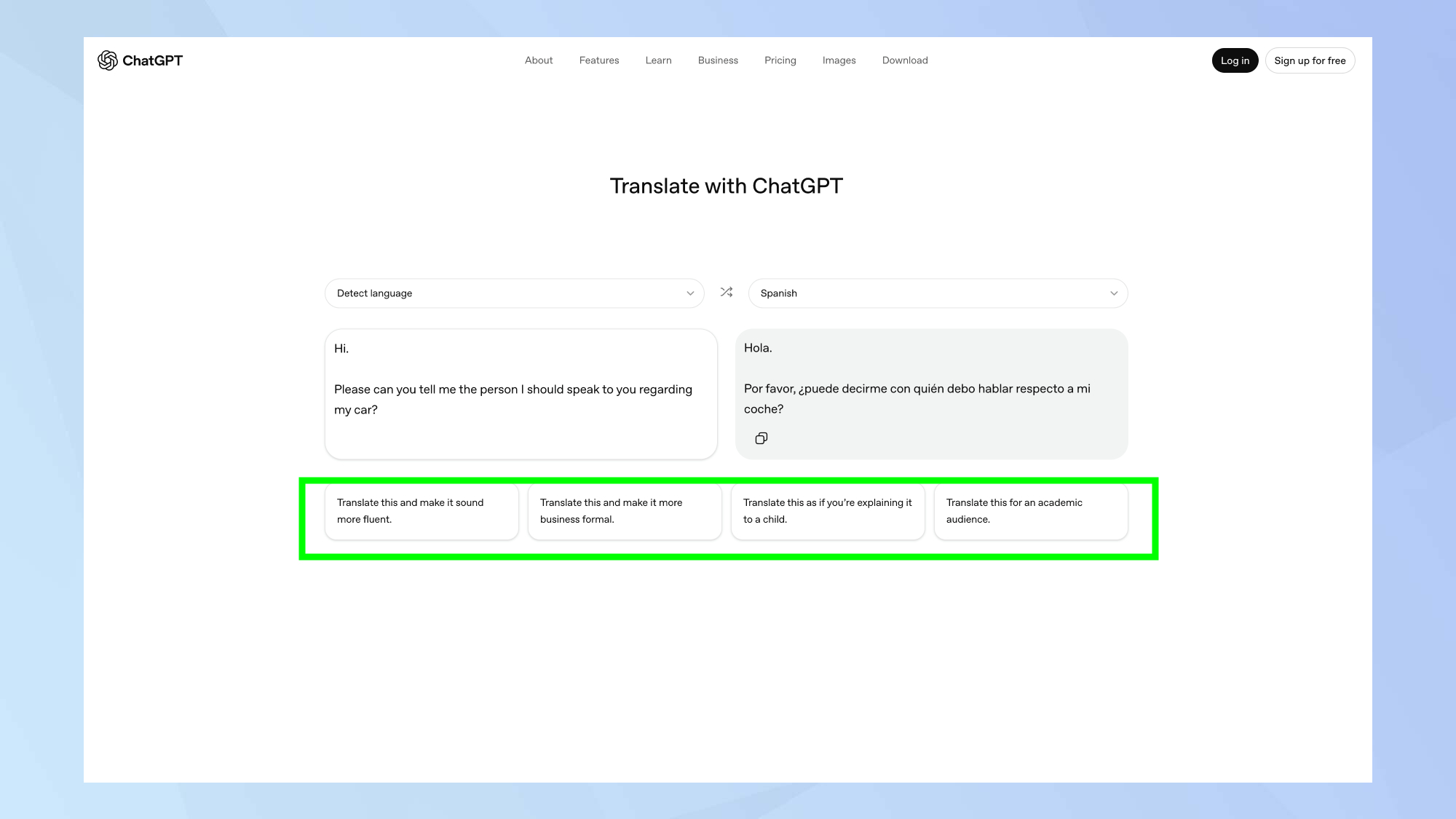
One of the standout features of ChatGPT Translate is the ability to refine the translation tone and style. Below the text boxes, you’ll see quick prompt options: Make more fluent, Business formal, For a child, and Academic audience. These refinement options set ChatGPT Translate apart from basic translation tools. Click any of these prompts to adjust how the translation sounds. When you tap a refinement prompt, it opens the request directly in ChatGPT with your original text and the chosen modification already applied. ChatGPT then provides a refined version of the translation tailored to your selected style.
Follow Tom’s Guide on Google News and add us as a preferred source to get our up-to-date news, analysis, and reviews in your feeds.