
If you own an Amazon Fire TV Stick, Fire TV Cube, or Fire TV Smart TV, there’s something most people never realize: your Fire TV is collecting data and running background processes from the moment you plug it in.
These default settings track what you watch, what you click, and how long you spend inside every app.
Not only is that a privacy issue it can actually slow down your device.
In this guide, I’ll walk you through exactly which settings to turn off to protect your privacy and make your Fire Stick run smoother.
Near the end, I’ll also show you one optional tweak that gives an instant speed boost on certain Fire TV devices.
Let’s get started.
Step-by-Step: Turn Off Fire TV Tracking & Speed Up Your Device
Step 1 — Open Settings
The first thing we need to do is open the Settings menu.
On the Fire TV home screen, scroll over to the gear icon in the top-right corner.
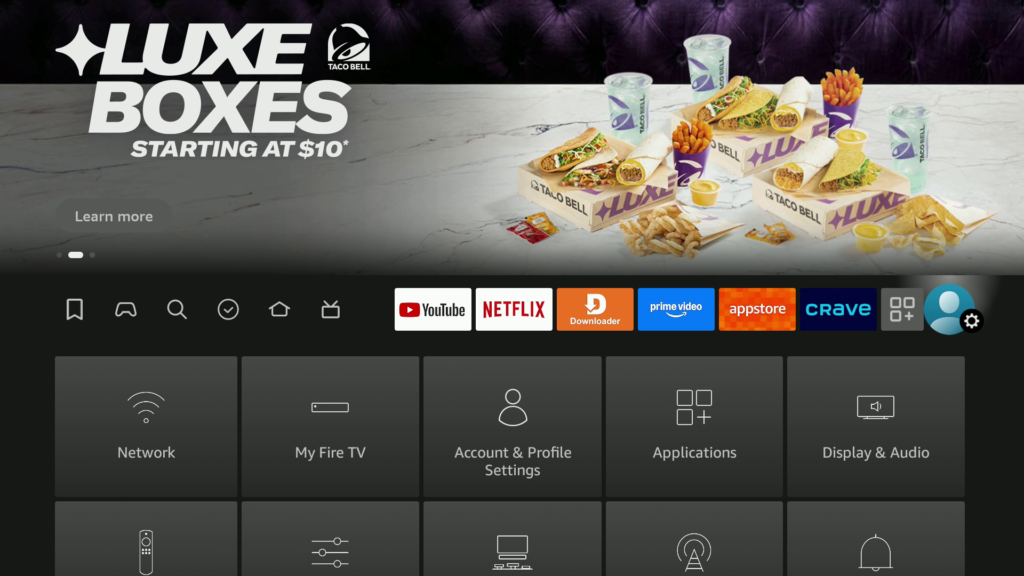
Step 2 — Open Preferences → Privacy Settings
Inside Settings, select Preferences, then choose Privacy Settings.
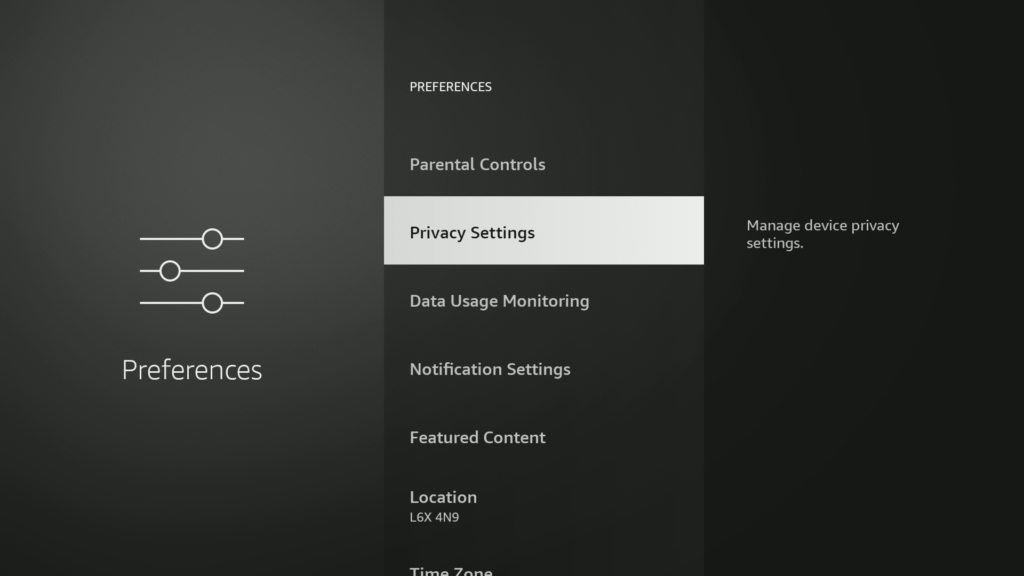
Step 3 — Turn Off All Tracking Options
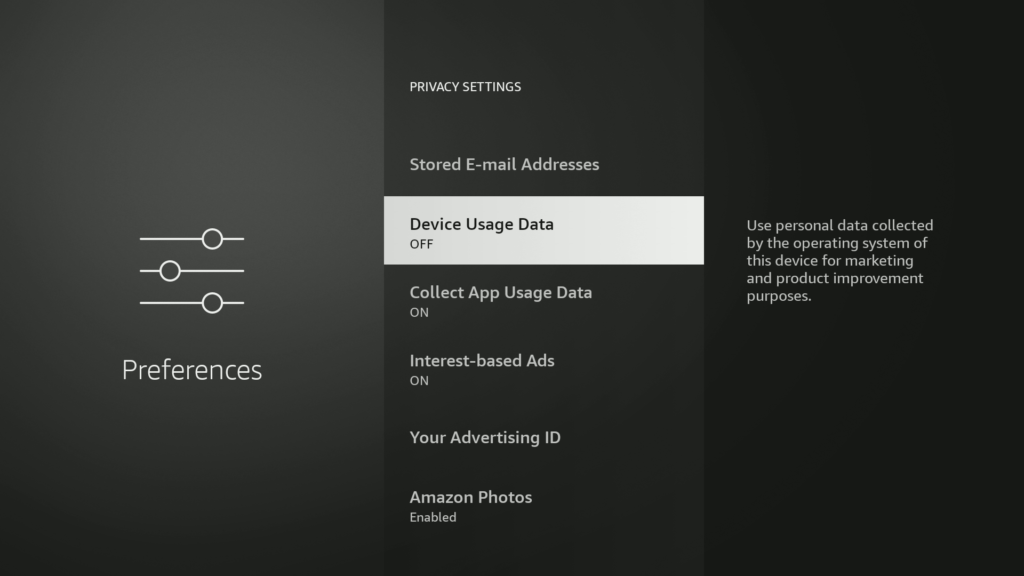
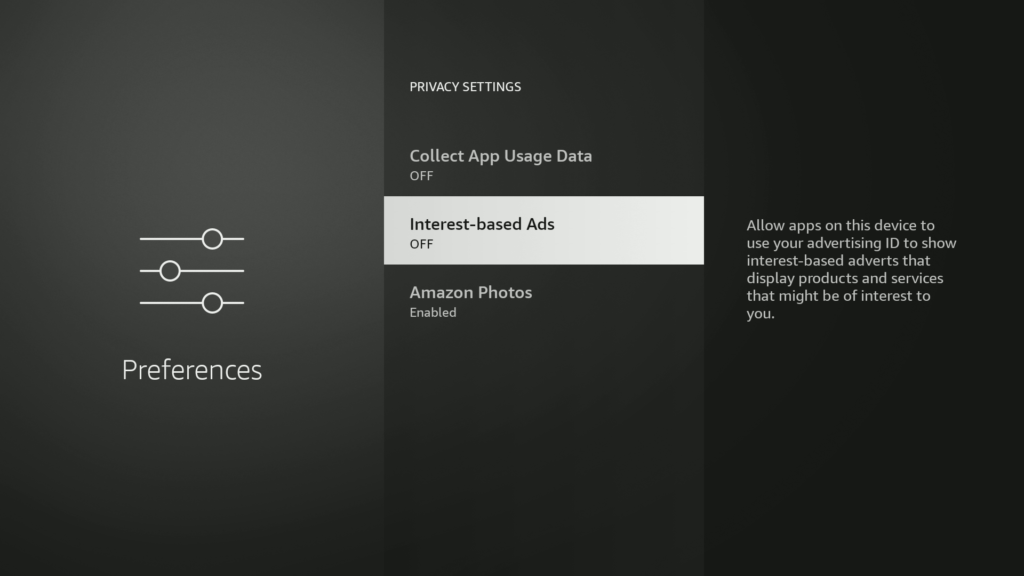
On this page, turn OFF the following:
- Device Usage Data
- App Usage Data
- Interest-Based Ads
- Data Monitoring (if visible)
- Personalized Recommendations (if visible)
Why this speeds up your Fire Stick
Telemetry constantly sends data back to Amazon — what you watch, what you click, how long you stay inside each app.
This uses background CPU, storage, and bandwidth.
Turning these settings off reduces background activity AND protects your privacy.
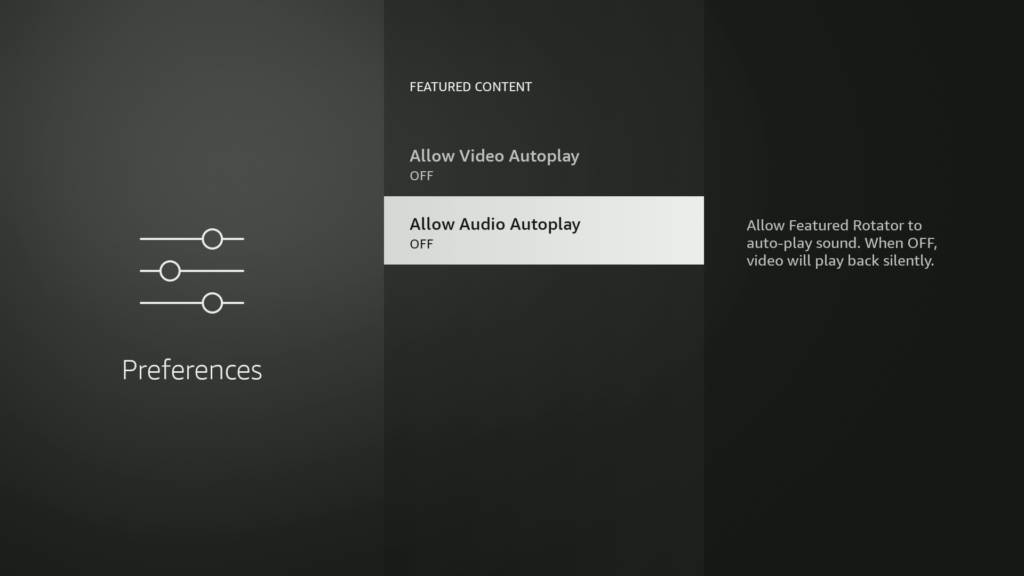
Step 4 — Disable Autoplay Video & Autoplay Audio
Go back to Preferences, then open Featured Content.
Turn OFF:
- Allow Video Autoplay
- Allow Audio Autoplay
Step 5 — Turn Off App Store Notifications
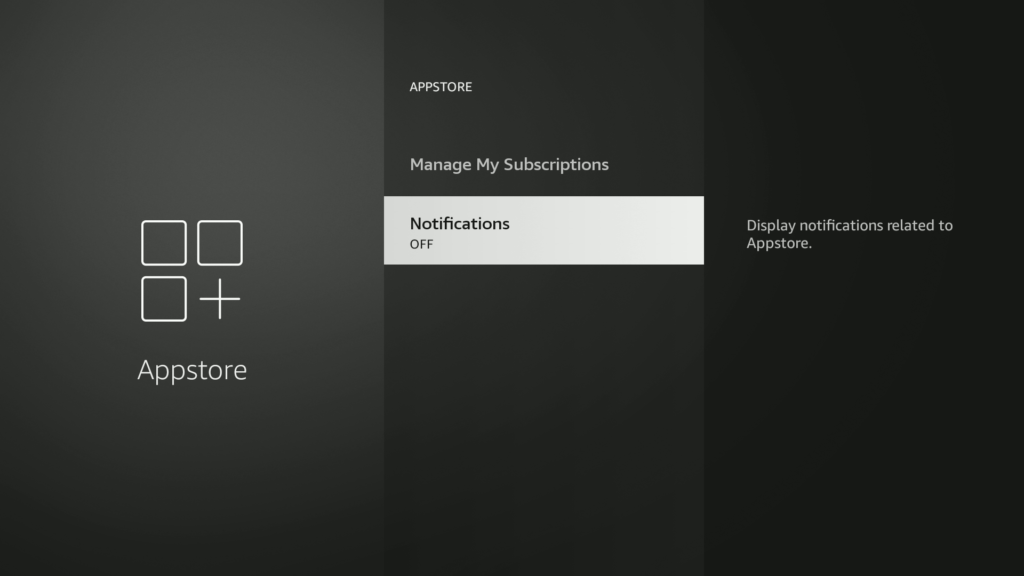
Go back to Settings, open Applications, then open Appstore.
Turn OFF: Notifications
Step 6 — Clear App Cache (Not Data!)
This is one of the biggest speed boosters.
Open:
Settings → Applications → Manage Installed Applications
Pick apps you use often:
- Prime Video
- Disney+
- Netflix
- YouTube
- Any slow-loading apps
Select Clear Cache.
Never select Clear Data unless you want the app fully reset.
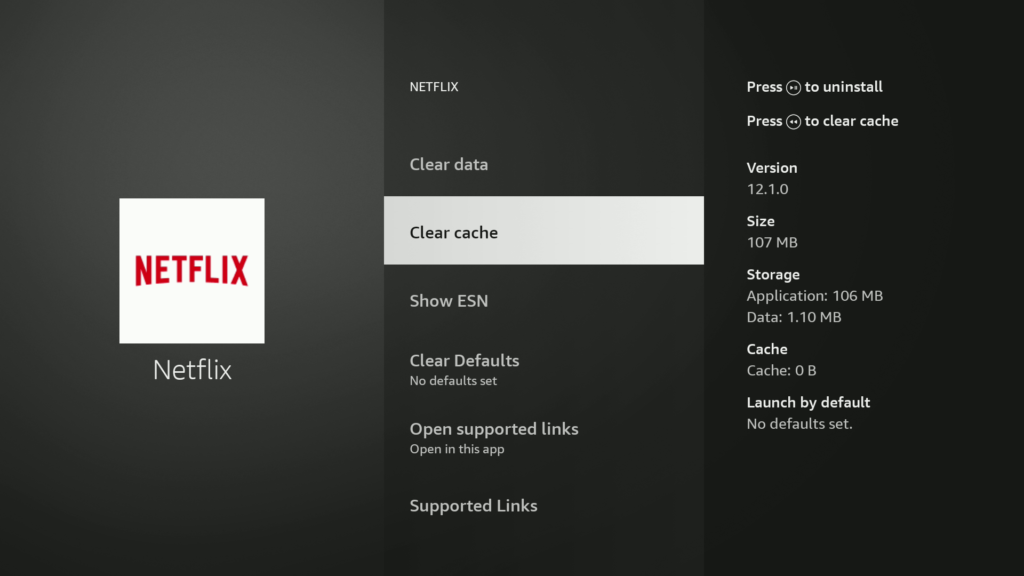
This frees up internal storage and helps reduce freezing and app slowdown.
Optional but Recommended — Use a VPN
Your internet provider can still see which apps you open and what kind of traffic is passing through your device, even after turning off Fire TV tracking.
I personally use IPVanish on all my Fire TV devices. It’s fast, private, and works great with Fire Sticks. I’ve used it for over 5 years.
There’s a link on my site if you want to check the current discount for IPVanish.

IPVanish has an impressive selection of features at a low price, with secure connections and fast speeds giving you unrestricted access to the internet. This is a great VPN choice if you’re looking for high-quality encryption for the price of a cup of coffee every month.
As with many VPN services, the annual subscription offers the best value for money.
Bonus Speed Boost (If Available on Your Model)
Some Fire TV devices include a developer option that lets you stop background apps and processes.
Here’s how to check:
- Go to Settings
- Select My Fire TV
- Choose About
- Click the “Fire TV Stick” name 7 times to unlock Developer Options
- Go back
- Open Developer Options
- Look for Background Apps & Processes
If it appears, turn off unnecessary background processing.

- Elevate your entertainment experience with a powerful processor for lightning-fast app starts and fluid navigation.
- Play Xbox games, no console required – Stream Call of Duty: Black Ops 7, Hogwarts Legacy, Outer Worlds 2, Ninja Gaiden 4, and hundreds of games on your Fire TV Stick 4K Select with Xbox Game Pass via cloud gaming. Xbox Game Pass subscription and compatible controller required. Each sold separately.
- Smarter searching starts here with Alexa – Find movies by actor, plot, and even iconic quotes. Try saying, “Alexa show me action movies with car chases.”
- Enjoy the show in 4K Ultra HD, with support for Dolby Vision, HDR10+, and immersive Dolby Atmos audio.
- The first-ever streaming stick with Fire TV Ambient Experience lets you display over 2,000 pieces of museum-quality art and photography.